Tuesday, March 8, 2011

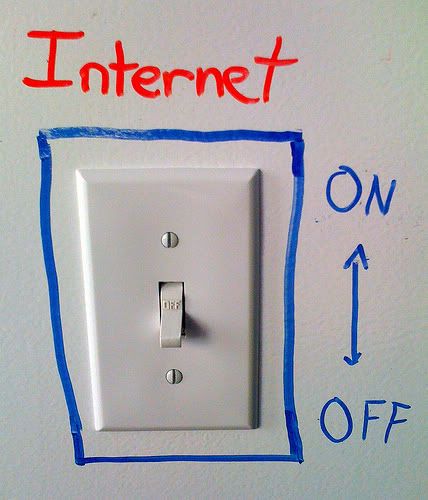
The Internet Kill Switch


[Note: This was written with an article via TechCrunch as it's source. You can read the original article here.]


Recently, in both Egypt, and now Libya, governments have decided to shut down the entire internet for their country. This not only fueled protests already occurring in said countries, but also arose the question, if our government wanted to shut down the internet completely to prevent a cyber-terrorist attack, or just in general to do so, would they be able to do so?


To turn off the internet in Egypt, the government simply forced their Internet Service Providers to shut down their servers. In Libya, the internet was still up, but the traffic allowed through it was throttled down to 0, so nothing could go in or out. Theoretically speaking, if the United States Government wanted to, they could simply force all of the major Internet Service Provides offline, but what they may have in the works is much simpler.


A new bill was been proposed, known as the "Internet Kill Switch" bill [even though those words are not included anywhere in the bill] some time ago. It has since stirred up a good amount of controversy, and in an attempt to make it more acceptable to the American people, it has been revised, and given the name “Cybersecurity and Internet Freedom Act of 2011" Early this year. [PDF]


While this bill has yet to be passed, and differs quite a bit from the original bill, it's still a great controversial subject in may conversations nowadays, as everyone contemplates the idea. It's main advocates; Joseph Lieberman, and President Barrack Obama are pushing the issue still, with it as one of their main hopes for the future.


Something most people are unaware of, however, is the fact that the President already has the power to turn off the internet. This power has been around for a long time, and derrives from the Communications Act of 1934. A section in it [702] gives the president the ability to, in the event of war, “cause the closing of any facility or station for wire communication” without warning. [PDF]


This topic in general has spawned a good amount of debate as to whether or not it is constitutional, or fair to the people. Do you think it's a good idea to have an "Internet Kill Swith" type option for the nation, in the event of a cyberterrorist attack? If you would like to discuss the topic in General, feel free to visit our forums, and talk with the community about it. Tell us what you think!


The current thread we have open for this discussion can be found here although you are welcome to start your own threads, and post wherever you like. See you on the boards!

Friday, March 4, 2011

IP Addressing - How To Count In Binary

"There are 10 kind of people in this world. The kind that know binary, and the kind that don't."
It's likely that you've heard the common fact that binary is a language computers, and other digital devices use to function, made up of only 1's and 0's. This is true! Have you ever wondered how it works though?

Here is a simple way to count in binary, that most I.T. Professionals have to use when subnetting a network.

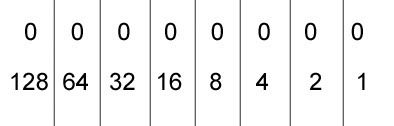
There are 8 digits [bits] that you will use for most the most common form of binary counting.

00000000

Each bit has a value.


To give the bit a value, you simply change the digit to the number 1.
For example,

00001000 = 8
01000000 = 64
00000001 = 1
00000011 = 3

-and so on.

You may have noticed, with this method, you can only count up to 255.

That is because 255 is the maximum value representable in a standard 8 digit binary number.

To further explain subnetting, and it's relation to binary, and this post, an article will be written at a later date. When it has been written, this post will be updated with a link to it.

To read more on Internet Protocol Addresses, click here

The Future of Internet Protocol Adresses

February 1st was one of the most important days for the internet. The last 83.9 Million IPv4 Adresses were handed out via ICANN. If that statement made next to no sense to you, then fear not! This article is going to explain Internet Protocol Adresses, and give you a better look on the innerworkings of both the internet, and the devices that connect to it.


Internet Protocol

Internet Protocol is the set of rules for communication over a network. [By rules, basically meaning the way it is done.] On a network, everything has two addresses. A physical address, which is known as a MAC address, and an IP adress. The MAC Adress is assigned to any network component, and is physical, meaning it cannot be changed. The IP Address can, however, be changed.

There are different versions of IP Adresses. IPv4 is the current version we use today! It is made up of 32 bits, and is the most common form of IP Address. Chances are you've seen an IPv4 address before if you're on the computer a fair amount.
An IPv4 Address looks like this:192.168.1.1


IPv6
When it was discovered that we would one day run out of IPv4 Addresses, IPv6 was invented.
An IPv6 Address looks like this:
 2001:db8:0:1234:0:567:8:1

As you can see, both numerical and alphabetical characters are included in these addresses, and they are made up of 128 bits, making them much more complex; therefore, a wider variety of them can exist; eliminating the possibility of running out anytime soon.


Packets


On the internet, or over a network, data transfers, using IP Addresses to route them to the correct location. IP Addresses are placed on things known as "packets" to guide them to their destination. Packets are segments of data used to transport files to their destination on a network. A file is broken down into packets, and then sent over then network and re-assembled at the location they are directed to.

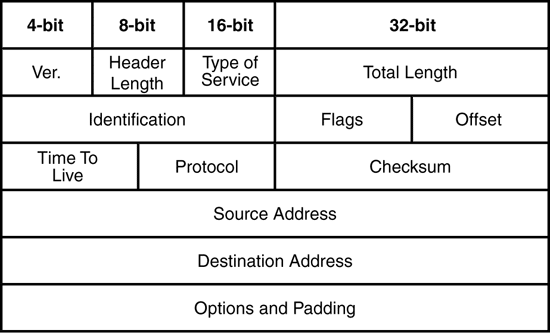
This is what a packet's structure looks like:
[Below, each section of the packet will be briefly explained]
Ver. [Version] - Explains which version of the Internet Protocol is being used. In this case, it is version 4.


Header Length - Is the length of the header, and the beginning of the data that is being sent in the packet.


Type Of Service - A part of the packet that contains five subfields. These subfields specify the delay, reliability, throughput, precedence, and cost desired for a packet. For a packet going over the internet, this field is not usually used.

Total Length - The length of the datagram and the header of the packet [the data being sent in the particular packet, along with the header of the packet].

Identification - A number assigned to the packet, which is unique to that fragment.

Flags - Indicates whether or not the packet is a fragment, and tells if it is the last one.

[Fragment] Offset - Tells where the fragment belongs in the original data being sent.

Time To Live - How many routers the packet can pass through on the way to it's destination. [With each router the packet goes through, this number decreases. After it reaches 0, the packet must be destroyed.]

Protocol - The type of high level protocol used.

[Header] Checksum - A computed number used to ensure the integrity of the header values.

Source Address - The address which the packet originated from.

Destination Address - The address of the destined location of the packet.

Padding - Null bytes used to make the header a multiple of 32-bits.


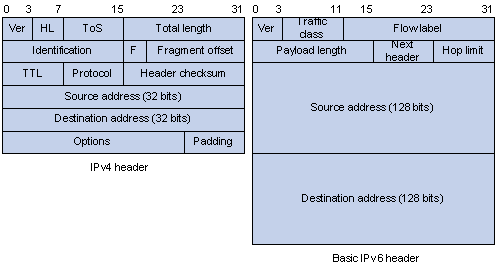
An IPv4 packet differs from an IPv6 packet slightly. Here's another image to give you an idea:


A bit simpler as you can see.

When you send a file, it is broken down into data segments, or packets, and sent over the internet, or network, to it's destination, using IP addresses as the destination (Much like an address and return address on an envelope or package). These are the basics behind IP addresses, and how they function in relation to our computers, and the data that is sent over the internet and networks. 

Tuesday, March 1, 2011

Browsing The Net With Internet Explorer 9 (RC) [Review]

Internet Explorer 9 - Reviewed

I've been itching to try out the new Internet Explorer 9 Release Candidate to see the changes that have been made to it, and how it runs as compared to it's would be predecessors, as well as how it stacks up to it's competitors. I finally got around to installing it near the end of last week, and after having used it for a few days, here is my general opinion on it.

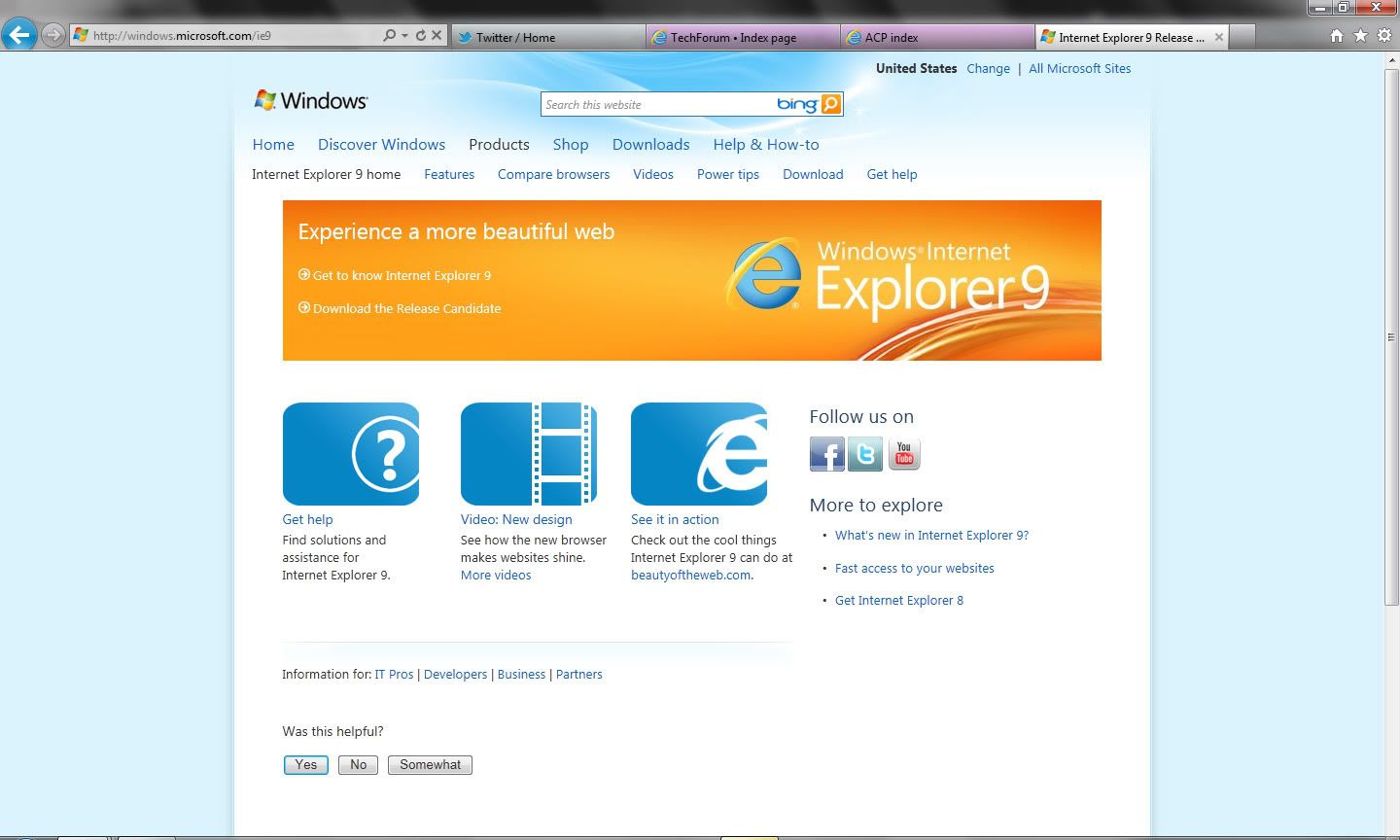
Surprisingly enough, I... really like it! It runs surprisingly smooth, and I've only run into a few issues thus far in my time using it. The design of IE9 is similar to that of IE8, and other web browsers in its tabbed appearance, but it has a few definite design differences you will notice when you try it.


The first obvious difference is the placement of the Address Bar, and the Tabs. The Tabs are directly to the right of the address bar, to save space, and give you a larger browsing window. While you may be thinking this idea is a bit of a problem, and your tabs would be too closely bunched together, I've yet to run into any trouble with that surprisingly, even with 10+ tabs open. Also, while on the subject of tabs, I've had no problem with lag between them thus far. There is one issue I have noticed where sometimes you will have to double-click on a tab to get it to switch, but that presents its self rarely. 

The loading style of this browser is quite unique, as it does not have a bar across the bottom that tells you when it is loading, where you are going when you hover over a link, etc, but instead simply has a spinning ring on the tab that is loading. [Once again, a measure to save space for the user while they are browsing]. While this may seem to present a problem, as most users are used to hovering over a link to see the full and proper link listed below it, to make sure the link is not a fake which will bring them to an improper or harmful site, it isn't a problem at all. When you hover over the link, instead of showing the full link down at the bottom as before, it simply appears next to your cursor in a yellow box.

The only time I have had any trouble with the browser with all the sites I've visited thus far is Photobucket.
For some strange reason, the new layout of Photobucket causes a massive lag within IE9 on my laptop in particular. I'm sure there are other sites out there that have this trouble, but I've yet to run into them. [Every browser has moments like this. Firefox is a prime example.] It may even be simply the computer it is being tried on that causes it, so do not hold this against it. I will later try IE9 on another computer, and update this post accordingly as to whether the issue persists.

Overall though, I am thoroughly impressed with Internet Explorer 9, and have even switched to using it as my main web browser [from Opera] for the time being. The release date for Internet Explorer 9 is still yet to be announced, so if you aren't liking the idea of trying out the Release Candidate, you've definitely got something new to look forward to toying around with in the future.

-Preston M.

3/1/2011

Wednesday, February 16, 2011

Recommended Tools and Software

In this day and age, there are many things people need to keep their computer systems safe, secure, and optimized. In this article, we will go over a few very useful programs and tools you may want to look into if you do not already use them. [As well as a few fun programs that come in handy]

Note: All of the software in this article can be found online for free! Simply click on the image to go to the download page for the program, and more information about it.

ANTI-VIRUS

Avast Anti-Virus

Avast is a free anti-virus software suite that is noted as one of the best on the internet today. 
Avast puts all of their effort towards virus research, and online distribution. Avast comes with an active scanning system that monitors your downloads, internet browsing, e-mail attachments, and other key places for virus intrusion. It is one of the least system heavy virus protection programs out there, and gets the job done efficiently. 

Microsoft Security Essentials

Microsoft Security Essentials is the latest [free] Virus Protection released from Microsoft. It is completely free, and is also very gentle on system resources. It does a great job with virus protection, and will find about anything. The main difference between Security Essentials and Avast is that Security Essentials does not have an active shield constantly monitoring certain aspects. It will usually catch incoming viruses through a web browser if you go to the wrong site on accident, or something of that nature, but it is always good to run a quick-scan with this scanner at least once a week. It is extremely fast though, and you will find next to no lag in your system while it is scanning.


CLEANUP

CCleaner

CCleaner is a freeware system optimization tool with a good amount of very useful features. If you're not familiar with the term "freeware", it means that it is completely free to use!

CCleaner can be used for a number of thing, but as it's title suggests, it's main intended purpose when it was created, was to cleanup your system; and it does it amazingly well. It can do an analysis to show you how much space it will free up. When you click analyze, it searches through temporary files, and unneeded files in Windows, Internet Explorer, Firefox, etc.
It also can scan intelligently for cookies, and will leave them on your system, so when deleting your temporary internet files you will still be logged into the sites you had left yourself logged into [ie. Facebook, Myspace, Twitter, etc.]

Another useful tool that it has is the Registry Cleanup tool. Fear not, those of you whom think this tool would tinker with your registry. It does not make any changes, it merely gets rid of unused file extensions, and other unused entries. [Sometimes when you uninstall a program, it leaves file extension types, and other unneeded junk in your registry.]

CCleaner also has a tool to uninstall programs [much like the Control Panel's add/remove programs, only this one tends to load faster], and also a tool to look through, and disable unwanted startup programs. If you're tired of seeing a certain program boot up each time you start your computer, and believe it is making it start up slower.

The company that makes this cleanup tool is known as Piriform, and they have a great number of other useful, and interesting tools. This tool in particular is great if your computer is running slow, or if you just feel you need to free up some unnecessary clutter.

File Reovery

Recuva

Accidentally deleted a file you really needed? Something important you think you may have lost due to self error? Fear no more! Recuva is a file recovery system from Piriform that can recover files that have been permanently deleted, or emptied from the recycle bin. While this may scare a lot of you, fear not; there are tools out there as well that can be used to make multiple passes over these deleted files, so this program cannot pick them up [CCleaner has one known as drive wiper, but there are also tools out there that can be used when deleting individual files].


Networking

Hamachi
[Also known as LogMeIn Hamahi²]


Hamachi is a very useful networking tool, used for setting up what would normally be a local network over the internet. If you install it and join a network, you can share files, network drives, etc. You can even have LAN parties with your friends; playing your favorite games together, without having to meet up and drag around your computer! It is as if you are on a local network, only there is no actual set up required. You simply install the software, set up your username, connect to the network you or a friend has created using the software, and you're in.

Hamahi uses some of the leading encryption and authentication in the industry, and is extremely secure, so you can rest easy, knowing that your information is safe.


Visual Effects

Object Dock

Tired of having so many desktop icons? Here's the solution!

Object Dock is small dock much like that on a Macintosh Operating System. It can stay at the bottom, top, right, or left side of your screen, and holds icons that when clicked will launch. [Much like the new taskbar in Windows 7]. You can customize it's appearance in many different ways, and can set it to autohide, or animate  it; making it to where when you hover over it with your cursor, the icons zoom, or shake.


Rainmeter

Ever get tired of the normal computer look? Do you want your operating system to look like something out of a movie, and impress your friends and family? Well, with this tool, you're halfway there!

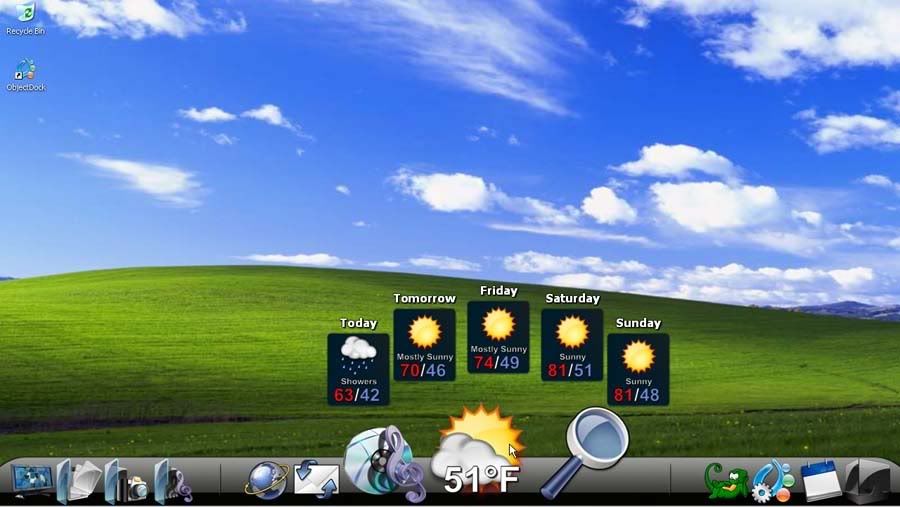
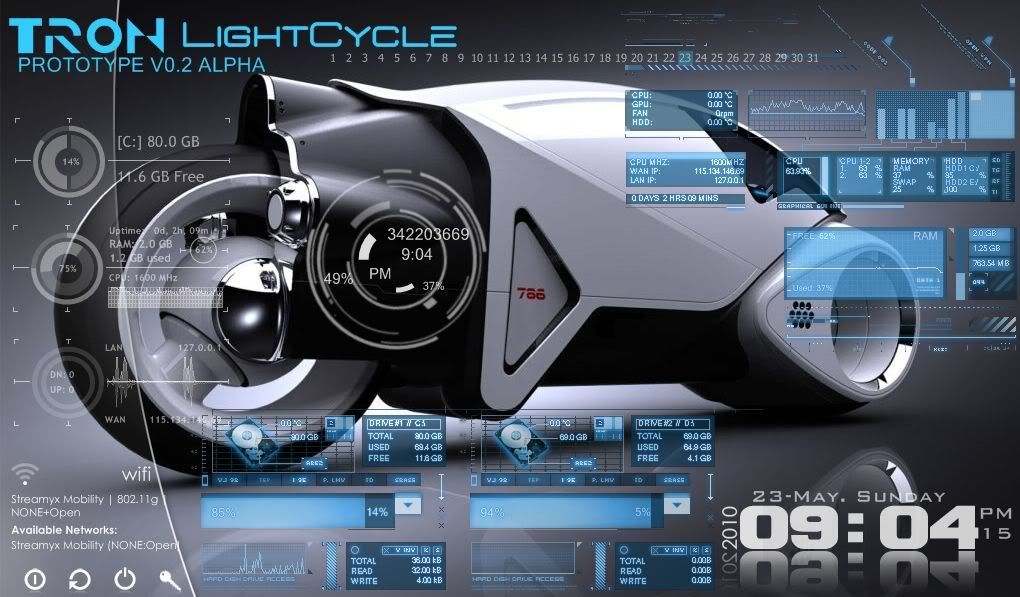
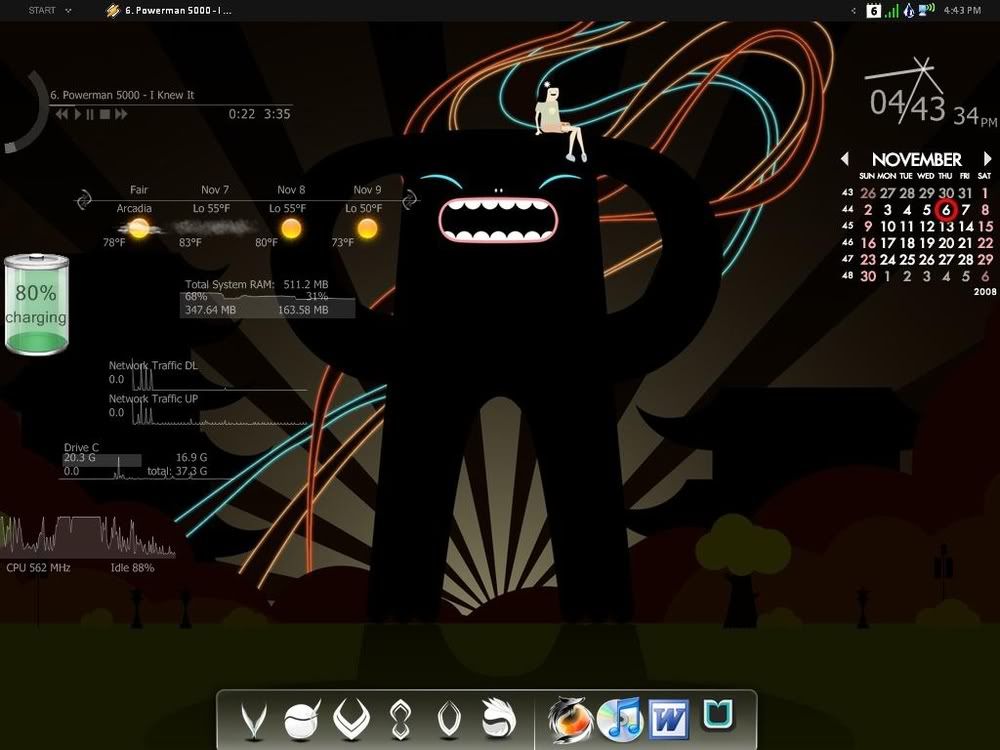
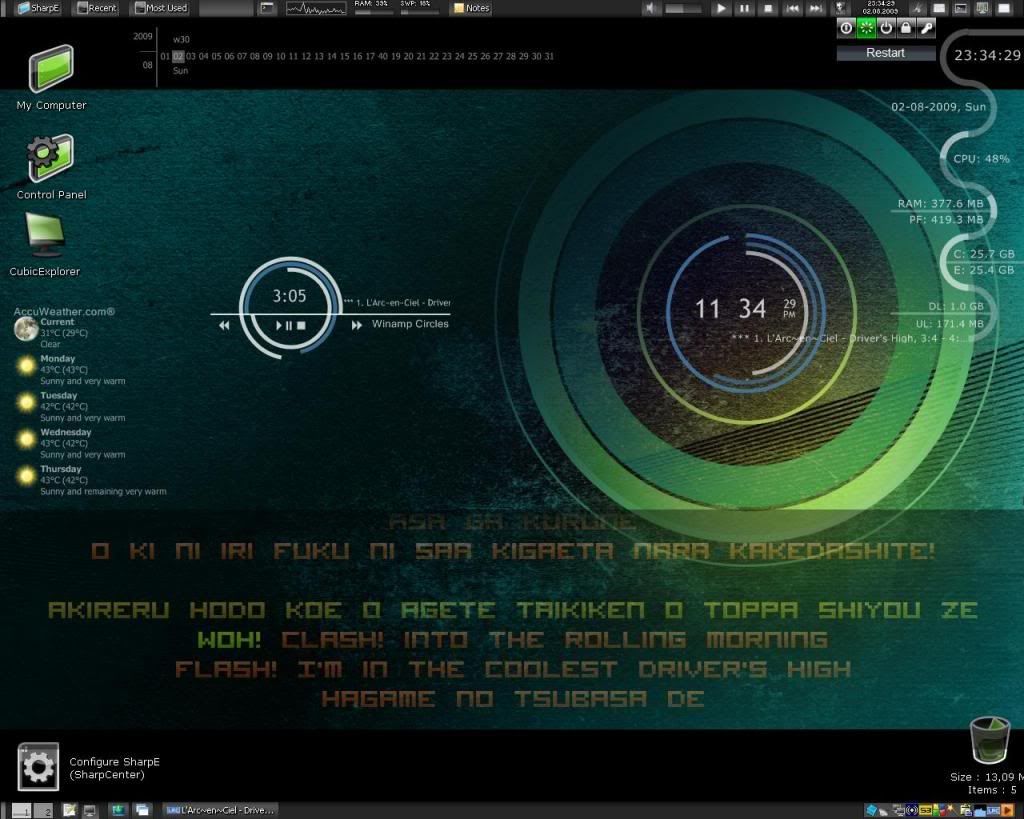
Rainmeter is a customizable tool that puts many useful and amazing looking tools on your desktop in the form of "Skins". It can be customized virtually any way you want, so long as you have the time to set it up [and learn how to use it if it is your first time]. You can set up clocks, weather, media player information, launcher buttons for your programs, system & network performance monitors, and many more useful tools! The default skins that come with it alone are impressive, but you can also design your own if you are decently skilled at programming. If you aren't, then there are tons of user created skins on the net for this amazing software! The possibilities are endless.

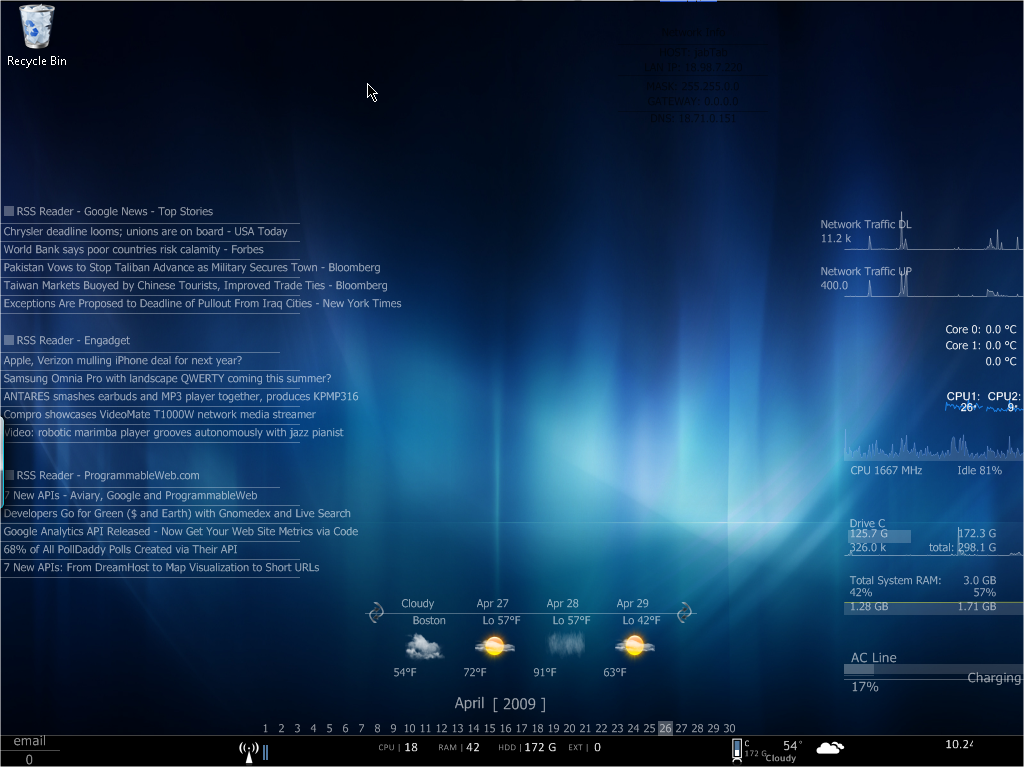
Here are a few screenshots of what Rain Meter looks like, and some different skins that are out there.
[The names they are labeled are not the skin names, simply the name given to the examples. I did not personally make any of these layouts, I simply discovered them for the purpose of showing what this software is capable of.]

Tron Light Cycle [Custom Skin]

Cat

Adventure Time

L'Arc~En~Ciel Themed

Blue  [This is one of the most basic skins that comes with the software, so you could easily set up something to this effect]

If you are having difficulty getting the hang of setting up the program, and would like a basic walk-through on how to set it up, change skins, etc, feel free to leave a comment on this post, and one will be posted here [or you can check on the site as well for more in-depth explanations].


Instant Messaging

Pidgin

Pidgin, originally an open source freeware program designed for Linux based Operating Systems such as Ubuntu, has become much bigger, expanding to Windows as well. Pidgin is particularly special, because it allows you to sign into all of your Instant Messengers [AIM, Yahoo, Windows Live, GTalk, etc.] on one client. It uses less system resources then almost every instant messaging client out there, and saves you the hassle of having to log into and have multiple messengers running.


Video Playback

KMPlayer

KMPlayer is a video, audio, and even image playback program that supports virtually every codec and file-type you can imagine; even a few you couldn't. It is one of the least system heavy players out there, and has excellent playback quality, also allowing you to change contrast, brightness, flip the video, resize it, and do just about anything you want with the playback.
Wednesday, February 2, 2011

Do You Know Who Is Working On Your Computer?

There are so many “computer companies” and now chain stores that offer IT Services. How do you know that the technician is competent to work on your system? How do you know the computer course you just signed up for has a competent instructor? This article is to help you, the consumer, know what some necessary certifications are and how they impact you and your computer.


The most basic certification for computer repair is the COMPTIA A+. This certification requires the candidate (technician) take two in depth exams. These exams cover hardware and all of the components inside your computer, basic operating systems and optional customer service. When the candidate has passed both exams they receive a certificate and wallet card showing they are certified. Please do not assume every computer repair shop or chain store technician is certified. I went into one of the chain stores where the manager did not know me. I questioned him as to if his computer repair technicians were A+ certified, and he replied, “No, any kid can replace a power supply”. When asked how their technician would know if it was the power supply causing the problem, he responded, "Who decides that?" Then shrugged his shoulders and walked away. Make sure you ask. Ask to see the technician’s A+ certification wallet card. Any technician that goes through the expense and the grueling exams will happily pull out their card.


The next on the certification list for PC troubleshooting is the MCP (Microsoft Certified Professional). This requires one exam that is based on an operating system in great detail. This exam is administered by Microsoft and again, the individual after passing the exam gets a certificate and wallet card. The MCP is really a base exam to build higher certifications on. This is the base exam for the Certified Desktop Support Technician (MCDST). To obtain the Certified Desktop Support Technician there is a second exam specialized for Certified Desktop Support Technician in addition to the MCP exam. The Certified Desktop Support Technician is the IT technician that would receive your computer related phone calls, chats or emails. Larger organizations require their Help Desk Technicians to have this certification. You, the consumer, have to rely on the company to decide to have their Help Desk Technicians be certified or not. One way to tell if they are or aren’t certified is if when they speak to you they seem to be reading from a “script” of steps to take and you ask a question “outside” their script they are lost for an answer and seem to sidestep your question.


The last certification that would impact the average consumer would be the Certified Master Instructor. If you sign up for an IT course at one of the growing Computer Training Centers, ask if the instructor you have is a Certified Master Instructor. To receive this certification the instructor must have taught for two years and have passed all of the expert exams (not basic) offered for each application. There are many “Learning Centers” that do not have Master Instructors or only have one to qualify to be a Learning Center. This does not mean your instructor is a Master Instructor. Again, a Master Instructor receives a certificate and wallet card. Make sure you ask! This is important so you know the instructor that is teaching you is fully competent in what they are teaching and that they also know how the applications interact with each other and the operating system.

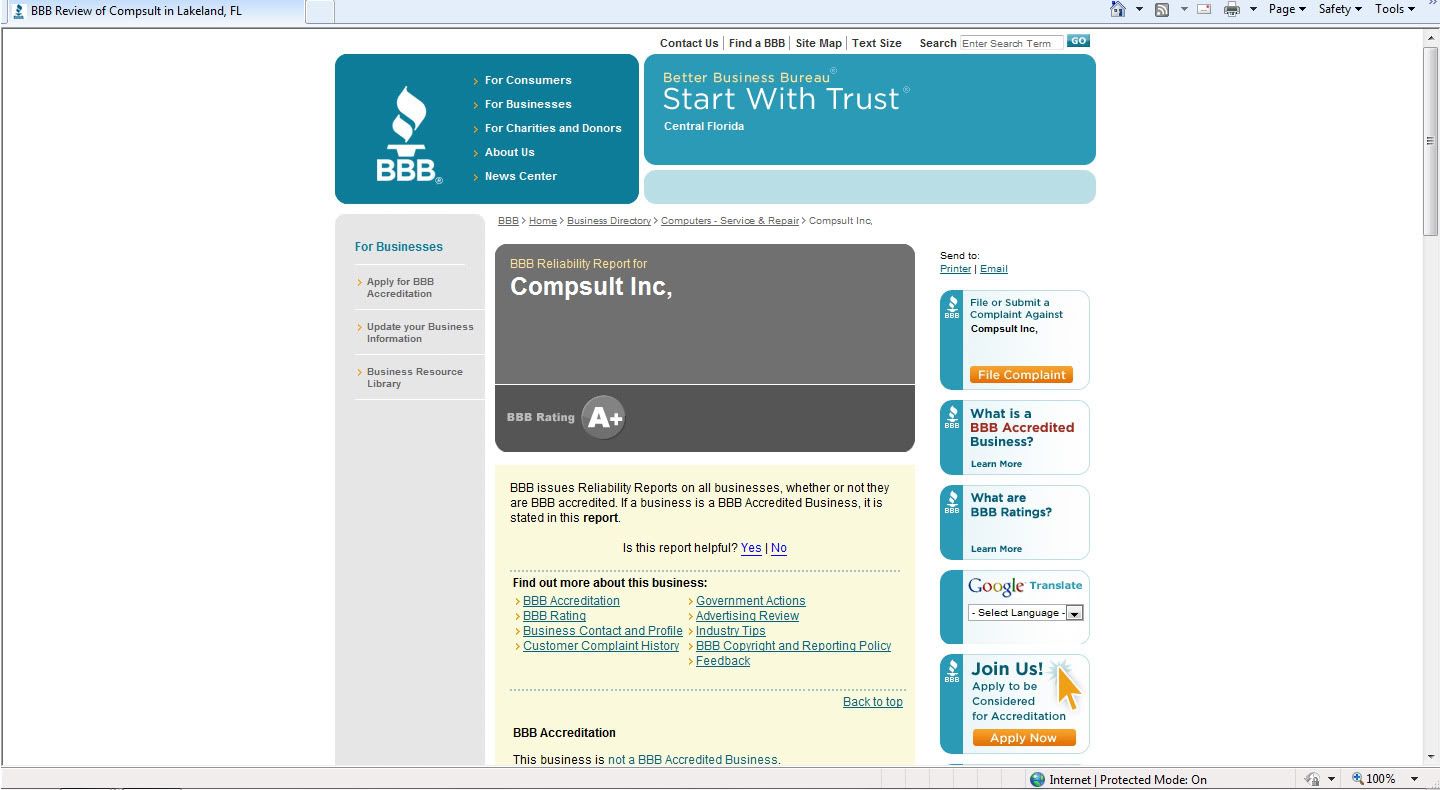
Another good way to go learning about a company, is to see if they are listed on the Better Business Bureau.
There you can see their rating, and information on the business, including contact info, complaints, etc.


There are many other certifications available besides the ones mentioned in this article. These certifications are more for businesses. The ones mentioned in this article are important to the everyday consumer. What this all comes down to is for you, the consumer, to know what you are getting. I do not know of one certified individual that went through any of the certification processes I mentioned that would not happily pull out their wallet card to show you their certifications if you asked. I have a wallet full and I know I wouldn’t mind. Be sure to always ask!
© Dawn Scardella

Tuesday, February 1, 2011

Technology and Privacy

These days, privacy is becoming an ever growing topic with newer technology such as Geotagging, and web services like foursquare. What does it all mean, and how does it effect you?

Geotagging


Geotagging is a new technology that surfaced with the development of Smartphones, the iTouch, and other similar technology. It uses your wifi-signal, 3G, or 4G connection to pinpoint your location, or bring up a list of nearby places for you to choose from. What is the danger of this? In some cases, it could be used to know your whereabouts. For example, if you were to have previously Geotagged your home, and later announce via Geotag that you are at a restaurant, robbers utilizing the internet could know that you're not home, and now is the chance to break into your house. That paired along with today's Social Networking sites, such as Twitter, and Facebook, people can know everything you're doing in some cases. Geotagging works through sites such as Facebook, Twitter, Foursquare, and a number of others.


Twitter

Twitter is a social networking site used to update your status; telling people what you are doing, posting interesting links, pictures, videos, and can be used for a number of things. Geotagging started on Twitter a few years ago, and now you can [even from a laptop or desktop computer] Share the location from which you are tweeting. Of course, if you are "tweeting" from a computer, unless you're at a local business or location that is listed, you may have to list yourself in a broader ranged area, such as the city you are in. The danger of Twitter, is that telling what you are doing every moment can be used to an advantage against you [as previously noted]. Other than that, it can be a great tool for meeting people, having fun conversations, and learning fun, interesting new things!

Facebook

Facebook, originally developed as a project site, which turned into website for college students to meet, communicate, plan for events, and socialize, as most college students spent a fair amount of time on the computer typing reports and studying. It later became public to anyone who wanted to join, and is now one of the largest social networking sites in existence. Facebook has a utility called Places that you can use to Geotag yourself at any location, but it doesn't tag your updates. Wherever you update your facebook from is for the most part anonymous [unless you choose to tell people where you are].


FourSquare

Foursquare is a game of sorts [which can only be updated from mobile devices such as smartphones, iTouches, etc] that allows the user to tag their location, competing with other users for the title of Mayor of a location, and gaining Acheivements. To become a mayor of a spot, you must tag yourself each time you visit that spot, until you are the most frequently tagged person in that location. You can also upload photos along with your "Check In" to tell others that you have been there.


Geotagging on Smartphones, iTouches, and other devices

Downloading the apps for Facebook, Foursquare, and Twitter on your Mobile Device are the most common ways to get your location Geotagged, although when using the applications, it will ask you the first time you use it, if you would like the application to use your location. If you simply press "Deny" or "No", Geotagging will be disabled for that application. Always check the settings on your device when you start using it for the first time, however, to be on the safe side.


Social Networking


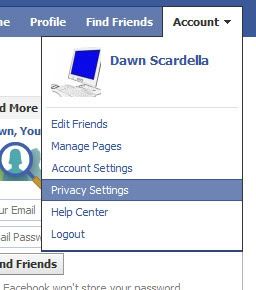
Social networking is the new most popular thing. Most people nowadays have a facebook. A great deal of people also use Twitter, and multiple other sites as well to tell people what they are doing and communicate with others. While social networking is a great thing to most, there are some who avoid it altogether in dislike of the fact that personal information can be viewed by virtually anyone. The truth about Facebook, and other social networking sites, is no matter what, people can view your "Profile" that you make. What they can see on it, however, can be controlled by you. Make sure to set your privacy settings to something you're comfortable with.

Facebook Post Privacy
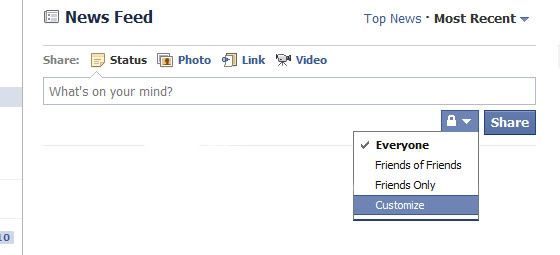
On Facebook, you can control who sees your posts as well. You can exclude certain people from seeing it, and you can also make it visible to everyone. It all depends on what you prefer.


Tweet Protecting

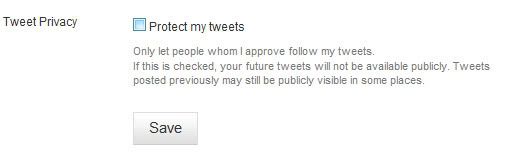
If you want to be able to monitor who follows you, and who is allowed to see your tweets on Twitter, you can use the "Tweet Protection" settings, to make your twitter account private. Only followers that you choose will be allowed to see your tweets.


Basically, one of the number one rules of privacy on the internet is: If you don't want other people to know about it, don't post it.